Custom List Tables: Turn a Database Table into a WordPress List Table
With Admin Columns 7 being released we will start sharing a closer look at some of the features coming next. One of the most significant additions planned for Admin Columns 7 is Custom List Tables and it will ship with Admin Columns 7.1, which will ship May or June 2026.
In this article we’ll take a first look at what Custom List Tables bring to Admin Columns and WordPress, using a few concrete use cases. The article will give you a good impression of what to expect from this upcoming feature.
The article is primarily aimed at developers, but the examples should allow anyone with a little coding experience to get some results quite easily. And there is also the cookbook!
What is a Custom List Table?
Custom List Tables allows you to manage a MySQL/MariaDB table inside WordPress as if it were a native WordPress list table. With a few lines of code you’ll get a sortable, filterable, exportable, and editable interface to any database table within the WordPress (list table) UI.
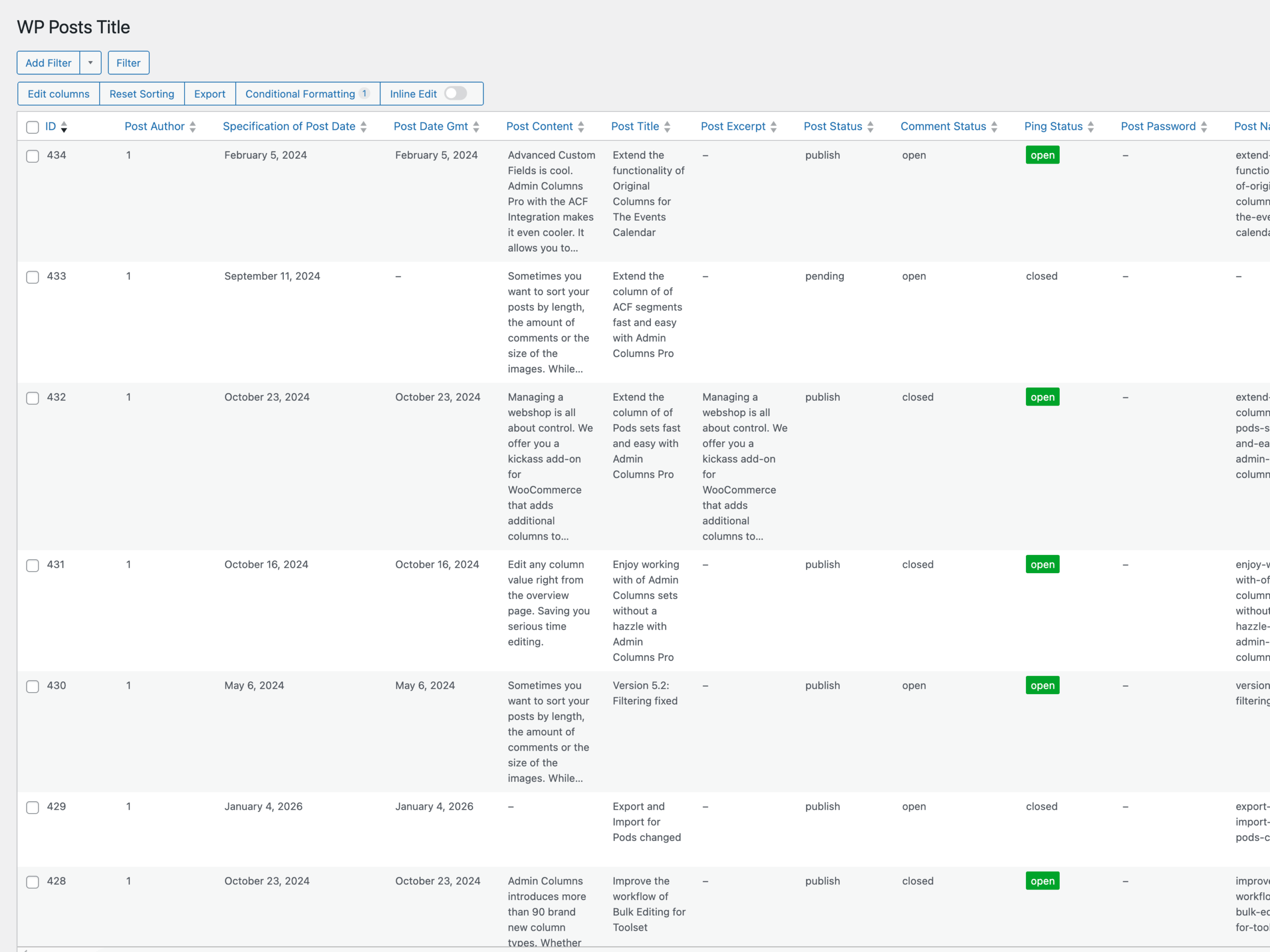
A database table that can also be accessed as a WordPress List Table is called a Data Source. It works out of the box with little to no configuration, but you can customize quite a few things, as you will see.
At the moment, Data Sources work exclusively with MySQL/MariaDB tables. We are exploring how other sources (such as an external API or a CSV file) can fit into Data Sources, but it will probably always rely on MySQL/MariaDB to act as a persistence layer. This will ensure the data will behave predictably and performant inside the WordPress admin.
Registering a Data Source
To make this a bit more concrete, let’s walk through a few use cases. Each one highlights a different aspect of this feature. It’s not exhaustive for all the possibilities, but it will give you a good sense of what you can do.
For this article we are using the default prefix of wp_ on tables. Your setup might use another prefix of course. We also left out most Use statements from the snippets for brevity.
Let’s just take a table every WordPress install probably has: The wp_posts table. A Data Source can target any table in your database, including the WordPress core tables.
use ACA\DataSources;

add_action('acp/data-sources/register', function (DataSources\DataSourceRegistry $registry) {
    $registry->register(
        DataSources\Facade\Entry::from('wp_posts', 'posts')
            ->set_menu('Posts Overview')
    );
});
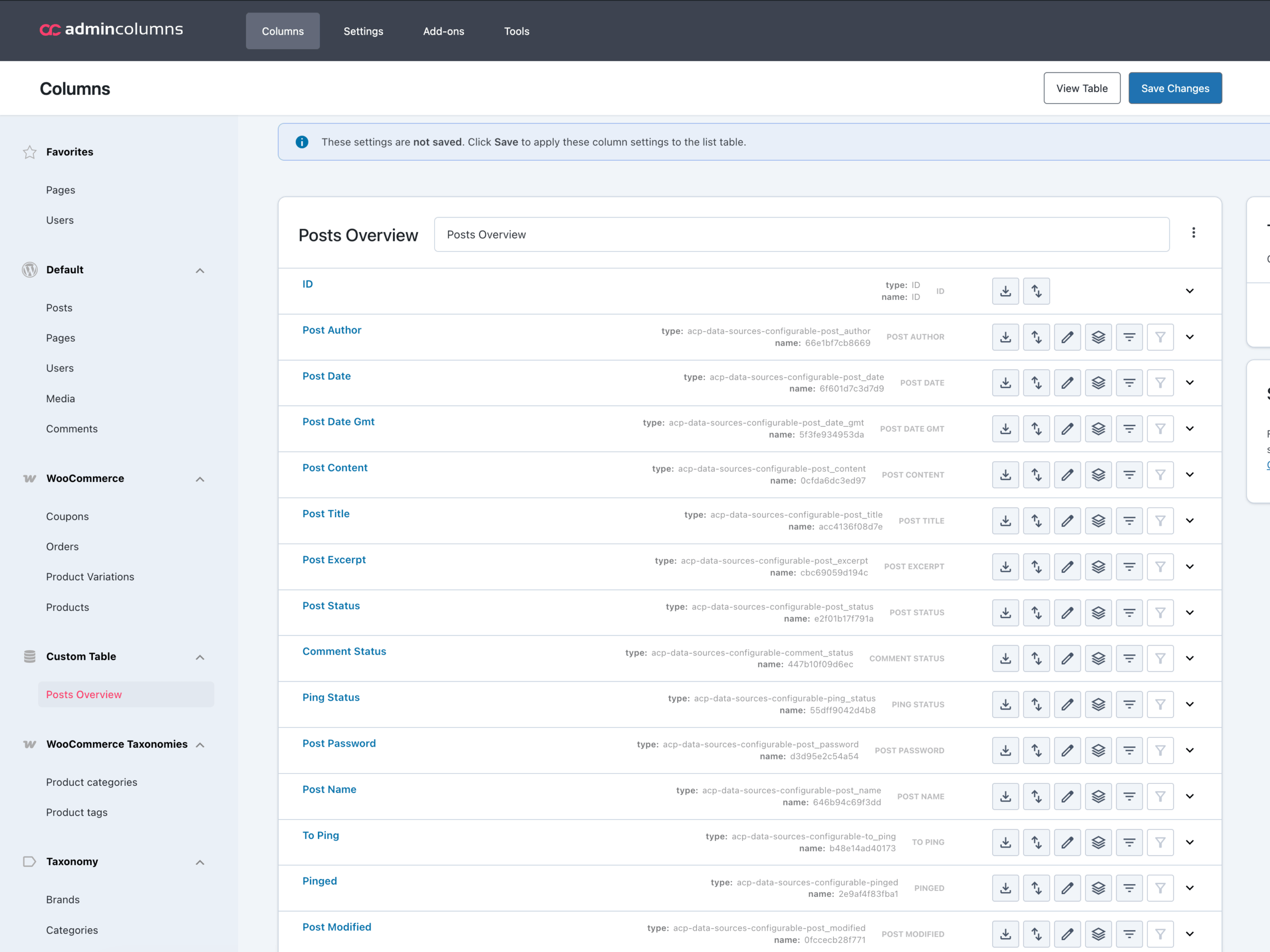
The results are a settings screen (on the left) and a working WordPress List Table (on the right):
You might have noticed the Facade namespace in the code snippet above. A facade provides a simpler interface for the (more complex) actual api. We use facades to create simpler configuration that cover 90% of the use cases. Here is the same example without facades:
add_action('acp/data-sources/register', function (DataSourceRegistry $registry) {
    $data_source = new DataSource(
        new DataSourceId('posts'),
        (new Resolver())->resolve('wp_posts')
    );

    $registry->register(
        Entry::create($data_source)
            ->set_menu('Posts')
    );
});
So what the Facade did for us: it creates a Resolver (used to read the table), creates a DataSourceId (used to uniquely identify a DataSource) and creates an Entry (used to map the DataSource to a Menu, Capabilities and a Group).
So, if all you want is to have a database table as a WordPress List Screen, the first code snippet will do. But if you need more control over which columns are visible, how they should appear and behave, and add relations based on these columns, you can do so with the actual api.
Use Case: Handling Permissions
Adding tables to your WordPress admin should be done with some care. You don’t want to expose sensitive data or accidentally remove yourself as a user. Although a Data Source comes with sensible permissions by default (only administrators get access), you can decide which role or user has access to a Data Source. It uses the WordPress capability system, so nothing custom to learn.
A Data Source has three capabilities: read, write and delete. When you register a Data Source, it sets custom capabilities that are only assigned to the administrator role.
| Data Source | WordPress Capability | WordPress Role |
|---|---|---|
| read | acp_data_sources_read | Administrator |
| edit | acp_data_sources_edit | Administrator |
| delete | acp_data_sources_delete | Administrator |
Handling Capabilities
You have control over which capabilities and roles have access to a Data Source. Say we want to use native WordPress capabilities:
add_action('acp/data-sources/register', function (DataSourceRegistry $registry) {
    $data_source = new DataSource(
        new DataSourceId('posts'),
        (new Resolver())->resolve('wp_posts')
    );

    $registry->register(
        Entry::create($data_source)
            ->set_menu('Posts Overview')
            // Specifying capabilities: map to native WordPress post capabilities
            ->set_capabilities(new Capabilities(
                'edit_posts',         // read
                'edit_other_posts',   // edit
                'delete_other_posts'  // delete
            ))
    );
});
In the code example we used a custom Capabilities object: this maps the Data Source’s read, edit and delete onto the native WordPress post capabilities edit_posts, edit_other_posts and delete_other_posts. Users with the Editor role for example will now see, and be able to manage the content of this Data Source.
Custom List Tables comes with a few handy factories that help you to create capabilities:
- Base (default): Creates custom capabilities for read (acp_data_sources_read), edit (acp_data_sources_edit) and delete (acp_data_sources_delete). These are not native to WordPress, so no one has access by default.
- Read Only Tables (decorator): Creates capabilities that only allow for reading the from the Data Source, editing and deleting are not allowed.
- Read Only Core Tables (decorator): same as above, but only applied to the core tables of WordPress (e.g. wp_posts and wp_users).
- Mapped (decorator): Maps the id of the Data Source to the read, edit and delete capabilities so you have unique capabilities per Data Source.
Let’s have a look at an example where we use the Read only Core Tables decorator:
add_action('acp/data-sources/register', function (DataSourceRegistry $registry) {
      // Expose wp_users as a Data Source, but with edit/delete blocked because
      // it's a WordPress core table.
      $data_source = new DataSource(
          new DataSourceId('users_browser'),
          (new Resolver())->resolve('wp_users')
      );

      // ReadOnlyCoreTables wraps another factory (Base here) and strips edit and
      // delete when the Data Source's table is a WP core table. For non-core
      // tables the decorator is a no-op.
      $capabilities = (new CapabilitiesFactory\ReadOnlyCoreTables(
          new CapabilitiesFactory\Base(),
          $data_source
      ))->create();

      $registry->register(
          Entry::create($data_source)
              ->set_menu('Users (read-only)')
              ->set_capabilities($capabilities)
      );
  });
These factories all implement the CapabilitiesFactory and you can easily decorate or create your own implementation that suits your specific needs.
Handling Roles
By default, only Administrators are granted capabilities to read, edit and delete. There are two filters that let you fine-tune things:acp/data-sources/capabilities/roles: Defaults to ['administrator']. Roles you define here get the default capabilities and will be able to read, edit and delete on Data Sources that do not have custom capabilities.
add_filter('acp/data-sources/capabilities/roles', function (array $roles) {
      return array_merge($roles, ['editor', 'shop_manager']);
});acp/data-sources/capabilities/data-source: Fires once per registered Data Source and allows you to set granular permissions per Data Source. Here you can see it in combination with the Mapped decorator:
add_action('acp/data-sources/capabilities/data-source', function (DataSource $data_source, CapabilitiesChecker $checker) {
      if ((string) $data_source->get_id() !== 'some_data_source_id') {
          return;
      }

      $role = get_role('some_custom_role');

      if ( ! $role) {
          return;
      }

      foreach ($checker->get_capabilities($data_source->get_id()) as $cap) {
          if ( ! $role->has_cap($cap)) {
              $role->add_cap($cap);
          }
      }
}, 10, 2);
Use case: Joining Tables
One of the main powers that databases give us, is the ability to join other tables to create new tables. Custom List Tables also supports this, but joins are always between Data Sources, not between raw tables. This gives you proper control over each side’s columns and capabilities, and you can manage each Data Source independently: You can have a List Table that shows Data Source A and have another List Table that shows another Data Source B + Data Source A using a join.
For most relation types you can decide wether a 1:1 (has one) or 1:M (has many) works best and wether a match should be optional (LEFT) or required (INNER).
There are three ways to join two or more Data Sources:
- Table level: Join an entire Data Source into another Data Source, useful for 1:1 relations.
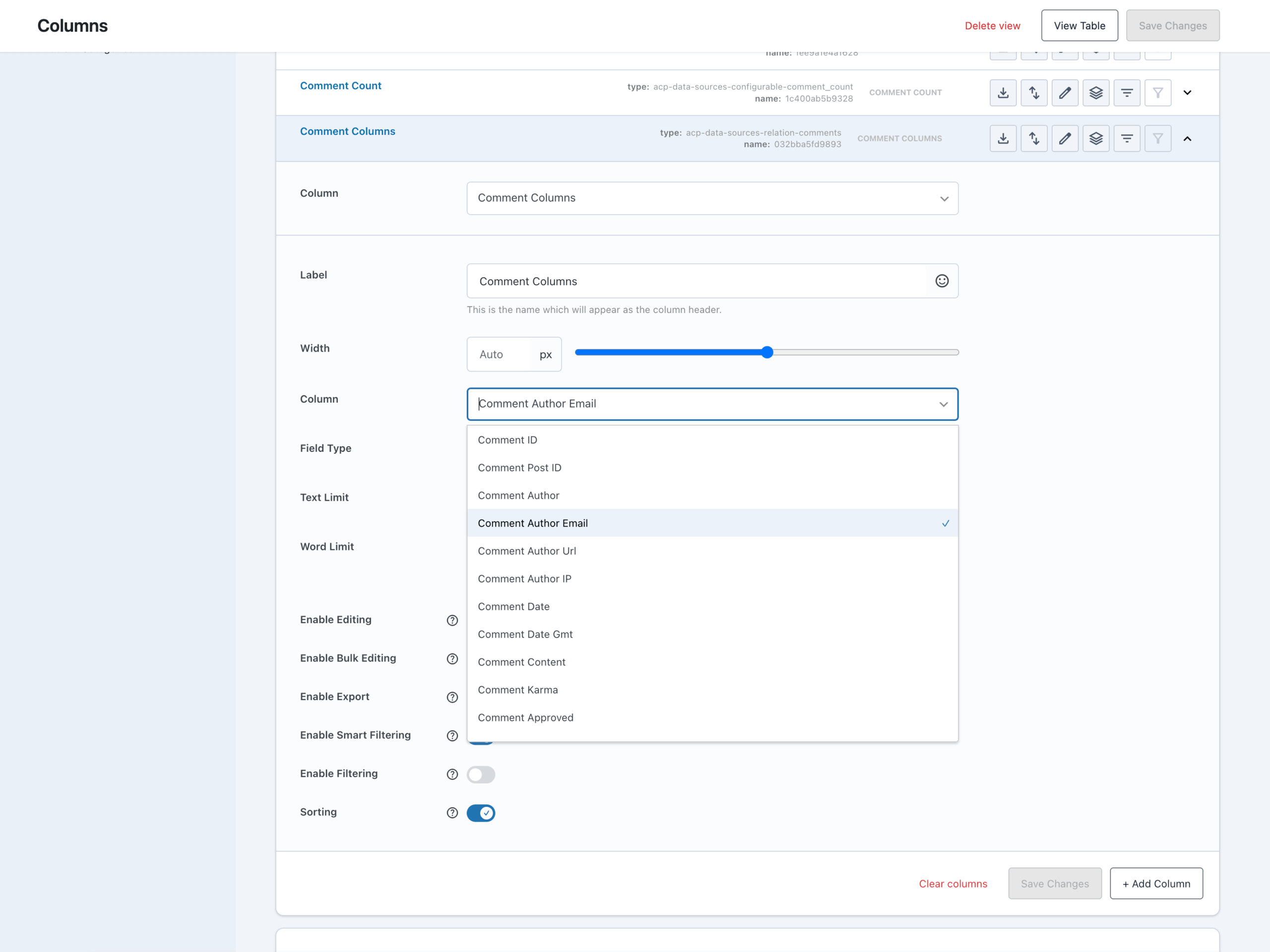
- Column level: expose one column from a Data Source as a new column on another Data Source. Useful for both 1:1 relations and 1:M, where all found values are shown as a list.
- Attribute level: for key/value structures like
wp_post_meta. You select the key column, value column and which value the key should be.
Let’s look at all three in action. Each example below registers its foreign Data Source first , then registers a new Data Source with the relation attached.
Table Level
add_action('acp/data-sources/register', function (DataSourceRegistry $registry) {
    // Register wp_posts as a Data Source first, without a menu. The foreign
    // Data Source must exist before another one can join it.
    $posts = new DataSource(
        new DataSourceId('related_posts'),
        Facade\Table::from('wp_posts')
    );

    $registry->register(new Entry($posts));

    // Register wp_comments and join one Post per comment.
    $comments = new DataSource(
        new DataSourceId('comments_with_post'),
        Facade\Table::from('wp_comments'),
        null,
        new Facade\Relations([
            Facade\Relation\Table::has_one($posts, 'ID', 'comment_post_ID'),
        ])
    );

    $registry->register(
        Entry::create($comments)->set_menu('Comments + Post')
    );
});
Column Level
add_action('acp/data-sources/register', function (DataSourceRegistry $registry) {
    // Register wp_comments as a Data Source first, without a menu.
    $comments = new DataSource(
        new DataSourceId('related_comments'),
        Facade\Table::from('wp_comments')
    );

    $registry->register(new Entry($comments));

    // Register wp_posts with a column that exposes one chosen Comments column
    // per Post. Comments are aggregated (one Post can have many Comments).
    $posts = new DataSource(
        new DataSourceId('posts_with_comments'),
        Facade\Table::from('wp_posts'),
        null,
        new Facade\Relations([
            Facade\Relation\Column::has_many($comments, 'comment_post_ID', 'Comments', 'ID'),
        ])
    );

    $registry->register(
        Entry::create($posts)->set_menu('Posts + Comments')
    );
});
Attribute Level
add_action('acp/data-sources/register', function (DataSourceRegistry $registry) {
    // Register wp_postmeta as a Data Source first, without a menu.
    $postmeta = new DataSource(
        new DataSourceId('related_postmeta'),
        Facade\Table::from('wp_postmeta')
    );

    $registry->register(new Entry($postmeta));

    // Register wp_posts with a configurable "pick a meta_key" column.
    $posts = new DataSource(
        new DataSourceId('posts_with_meta'),
        Facade\Table::from('wp_posts'),
        null,
        new Facade\Relations([
            Facade\Relation\Attribute::has_one(
                $postmeta,
                'post_id',          // foreign key column on wp_postmeta
                'Post Meta',        // label for the new column
                'meta_key',         // attribute name column
                'meta_value'        // attribute value column
            ),
        ])
    );

    $registry->register(
        Entry::create($posts)->set_menu('Posts + Meta')
    );
});
Try it Yourself: The Cookbook
We have created runnable recipes in our Custom List Tables Cookbook plugin. It’s a small companion plugin that registers various examples as its own admin page, so you can poke at them on a real WordPress install instead of copy/pasting snippets one by one. The cookbook covers most things you can do with Custom List Tables in quite some detail.
Each recipe is independent. You can enable any combination by commenting out lines in the plugin’s bootstrap.php. Recipes that need a third-party plugin (like WooCommerce) guard themselves with a class_exists() check, so they no-op silently when the plugin is inactive.
Wrapping Up
Quite a technical read! But hopefully you now have a good understanding of the possibilities that Custom List Tables bring to Admin Columns and your WordPress installion in general. If you have tabular data: Admin Columns can support it now! The next big thing would be to find an elegant way to make it easy to support external tabular data such as an API or a CSV file.
As always, we are open to feedback and keen to hear your thoughts on this! Just comment here to post additional features requests on the public roadmap. Thanks for reading along!
FAQ
- What kind of data does a Custom List Table support?
At the moment, Custom List Tables work exclusively with MySQL/MariaDB tables. This includes WordPress core tables as well as custom tables created by plugins or applications.
We are exploring how other data sources, such as APIs or other tabular data, could fit into this model in the future. Any such integration would likely rely on MySQL/MariaDB as a persistence layer. This ensures the data behaves predictably and performs well inside the WordPress admin. - Can I register the same table more than once?
Yes.
You can register a Data Source multiple times as long as each Data Source has a unique id. This makes it possible to expose the same underlying data in different ways, for example with different columns, relations, or permissions. - Which field types are supported?
Right now we support text, numbers, booleans (toggles), date/time, email, URLs, images, colors, selects/dropdowns, and references to WordPress posts, users and media. Each type has its own options (e.g. formatting of a date or mapping toggle values). - Can I have duplicate rows on the List Table when I use a relation?
Right now we stick with how WordPress does this: it groups on the identifier of a row, allowing you to easily target this row. Duplicating the identifier can lead to unpredicted behavior. It could be that we allow this to be changed using a filter in the future. But in most cases, a 1:M relation can als be defined as M:1, where you just take the other Data Source as the starting point. Or by using a Column relation, where you can easily support multiple values in a single cell. - Are WordPress core tables like wp_users or wp_posts treated differently?
No.
But we do have a specialCapabilitiesFactorythat will prevent any edit or delete actions, so you can’t accidentally remove yourself as a user for example.