A First Look at Custom List Tables: Turn a Database Table into a WordPress List Table
With Admin Columns 7 being released we will start sharing a closer look at some of the features coming next. One of the most significant additions planned for Admin Columns 7 is Custom List Tables and it will ship with Admin Columns 7.1.
In this article we’ll take a first look at what Custom List Tables bring to Admin Columns and WordPress, using a few concrete use cases. Things might still change a little, but the article will give you a good impression of what to expect from this upcoming feature.
The article is primarily aimed at developers, the examples should allow anyone with a little coding experience to get some results quite easily.
What is a Custom List Table?
Custom List Tables allows you to manage a MySQL/MariaDB table inside WordPress as if it were a native WordPress list table. With a few lines of code you’ll get a sortable, filterable, exportable, and editable interface to any database table within the WordPress (list table) UI.
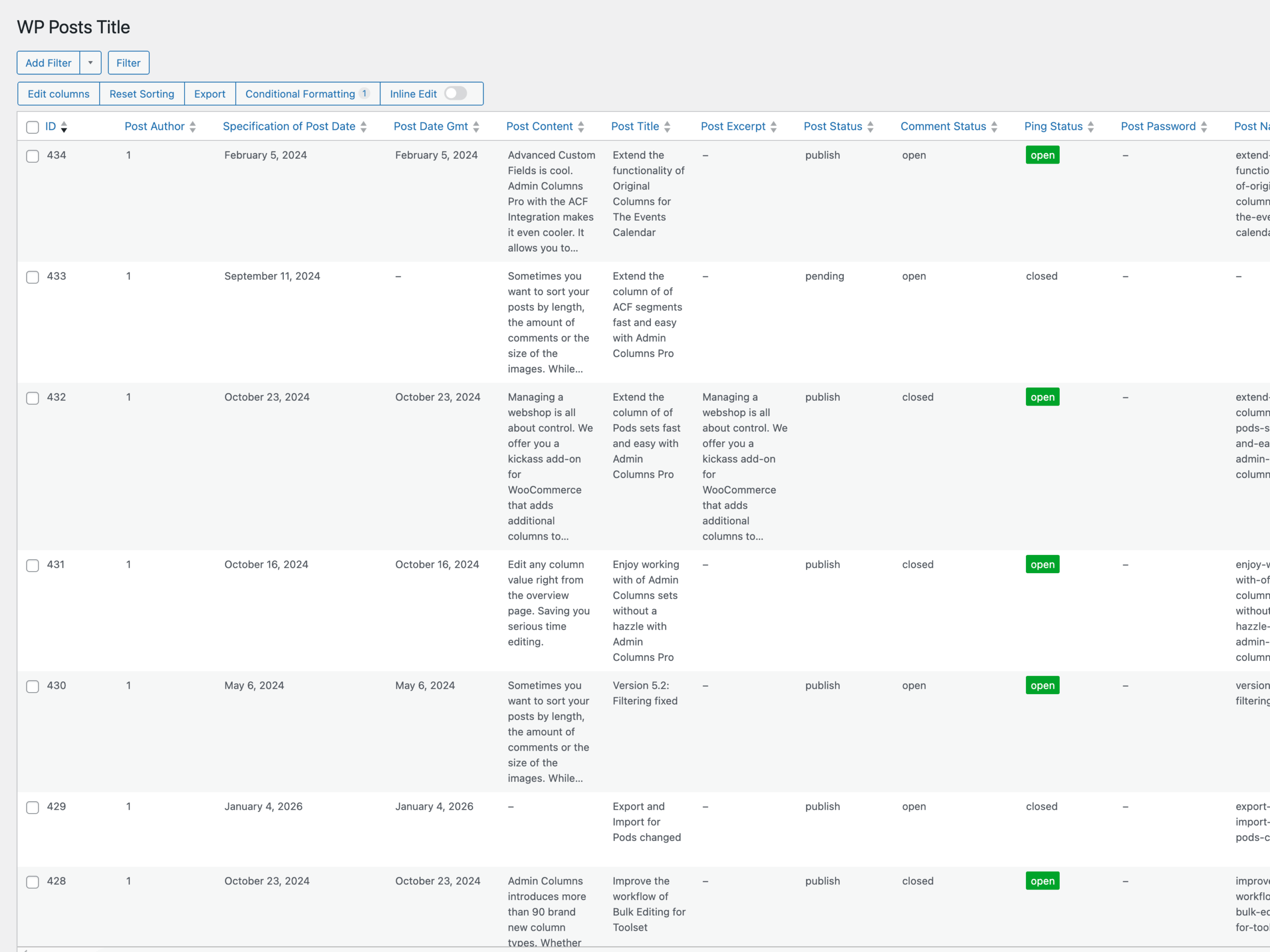
We have a distinct naming for a database table that can also be accessed as a WordPress List Table: Data Source. You’ll soon see why, as you have quite some control over how a Data Source behaves.
At the moment, Data Sources work exclusively with MySQL/MariaDB tables. We are exploring how other sources (such as an external API or a CSV file) can fit into Data Sources, but it will probably always rely on MySQL/MariaDB to act as a persistence layer. This will ensure the data will behave predictably and performant inside the WordPress admin.
Registering a Data Source
To make this a bit more concrete, let’s walk through a few use cases. Each one highlights a different aspect of this process. It’s not exhaustive for all the possibilities, but it will give you a good sense of what you can do.
For this article we are using the default prefix of wp_ on tables. Your setup might use another prefix of course. Furthermore ,we left out most Use statements from the snippets for brevity. Once the feature is released, we’ll update or rewrite the article with complete snippets.
Let’s just take a table every WordPress install probably has: The wp_posts table. A Data Source can target any table in your database, including the WordPress core tables.
add_action('acp/data-sources/register', function (DataSourceRegistry $registry) {

    $data_source = new DataSource(
        'posts_basic',
        (new TableSchemaColumnsBuilder())
            ->normalize_names()
            ->build('wp_posts'),
        new DatabaseFactory('wp_posts'),
        new MenuFactory(
            'Posts Overview',
            'Posts (Custom)'
        )
    );

    $registry->register($data_source);
});
The first argument (posts_basic) is the unique id of this Data Source. You won’t need it often, but it vital in retrieving and referencing other Data Sources.
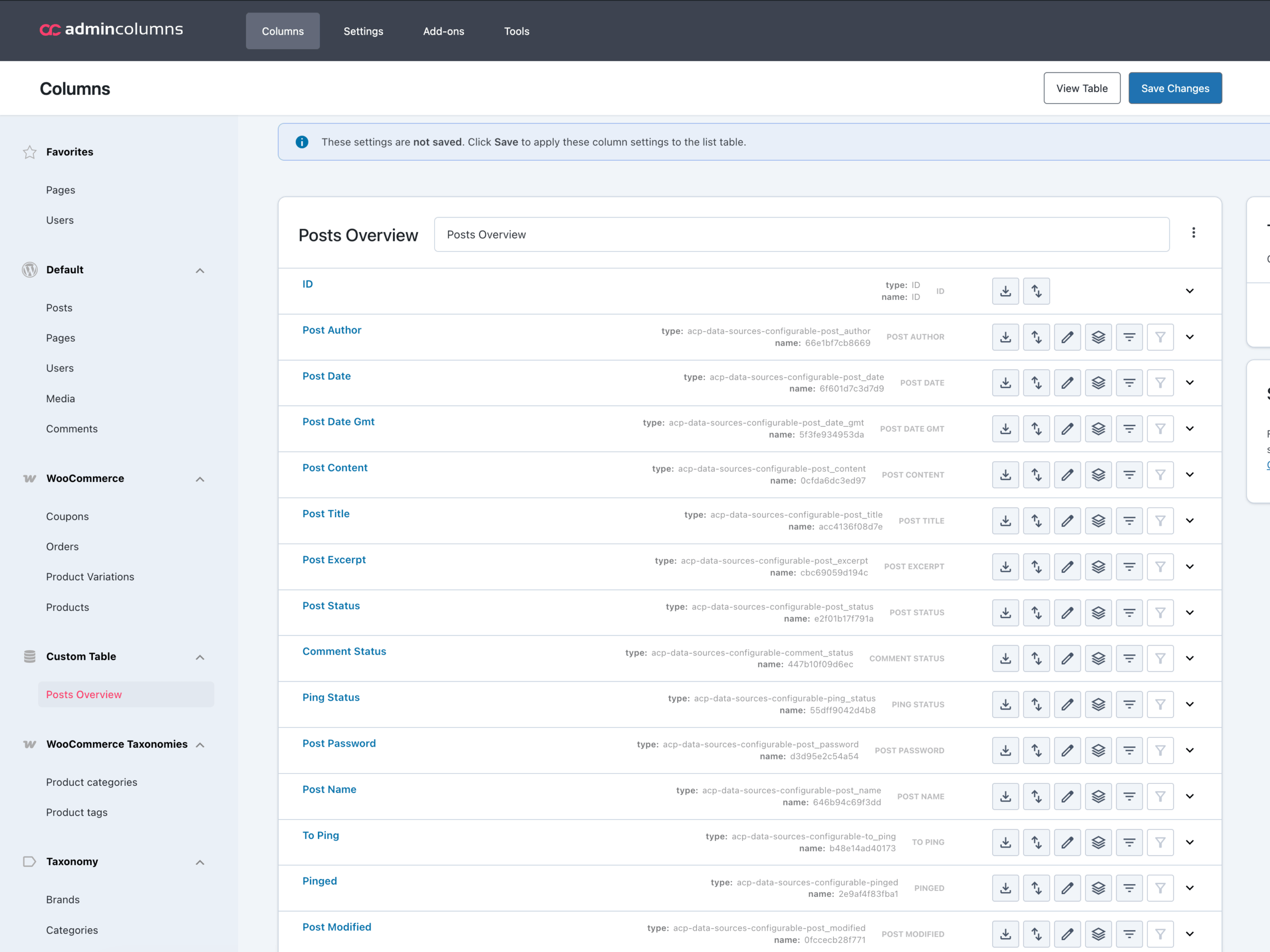
The second argument should describe your database table: which columns are present and what kind of data do they contain. For small tables or specific use cases you might want to manually define this, but we wrote a builder that will simply scan your database table and add the columns automatically. This builder comes with a few handy methods such a normalize_names() (which will display post_author as Post Author in the settings) and add_as_non_default_columns() which will prevent these columns to be loaded as the default columns present on the List Table.
Then we have MenuFactory. This class controls the appearance of this Data Source in the admin menu. You can supply a page title, menu title, icon and menu position.
And last but not least in this example, we supply the table itself along with a DatabaseFactory to ensure our Data Source knows where to find the table and how to query it.
And that’s it! The result is a settings screen (on the left) and a working WordPress List Table (on the right):
Use Case: Handling Permissions
Adding tables to your WordPress admin should be done with some care. You don’t want to expose sensitive data or accidentally remove yourself as a user. Although a Data Source comes with sensible permissions by default (more on that later), you can decide which role or user has access to a Data Source. It uses the WordPress capability system, so nothing really custom to learn.
A Data Source has three capabilities, which are mapped to WordPress capabilities by default:
| Data Source | WordPress Capability | WordPress Role |
|---|---|---|
| read | edit_posts | Author and above |
| edit | edit_other_posts | Editor and above |
| delete | delete_other_posts | Editor and above |
Let’s just put this into practice:
add_action('acp/data-sources/register', function (DataSourceRegistry $registry) {

    $data_source = new DataSource(
        'posts_basic',
        (new TableSchemaColumnsBuilder())
            ->normalize_names()
            ->build('wp_posts'),
        new DatabaseFactory('wp_posts'),
        new MenuFactory(
            'Posts Overview',
            'Posts (Custom)'
        ),
        null,
        // Specifying capabilities
        new CapabilitiesFactory\Posts()
    );

    $registry->register($data_source);
});
In the code example we added CapabilitiesFactory\Posts to our configuration. The default is the CapabilitiesFactory\CoreTableProtection factory. Both do the same thing: they map the capabilities as is shown in the table above. But the CapabilitiesFactory\CoreTableProtection does something extra: it will not allow anyone to edit or delete data in WordPress core tables. This is done to prevent you from doing accidental harm, such a removing yourself from the wp_users table or remove important settings from wp_options, rendering your site broken.
You can also apply general Data Source capabilities by using the CapabilitiesFactory\DataSources. This will add unique capabilities that only apply to Data Sources.
Let’s use another table to see what that means:
| Data Source | Data Source Capability | Mapping Applied |
|---|---|---|
| read | acp_data_sources_read | acp_data_sources_read_{id} |
| edit | acp_data_sources_edit | acp_data_sources_edit_{id} |
| delete | acp_data_sources_delete | acp_data_sources_delete_{id} |
If you use this factory, only Administrators will get permissions and you can then use the acp/data-sources/capabilities/roles filter to extend that. You can also apply mapping here: this will create a unique capability per Data Source based on the id of Data Source. Using the acp/data-sources/capabilities/data-source filter you can then tweak this as fine grained as you like.
What is comes down to: the CapabilitiesFactory is an interface which allows to write your own implementation on how to handle capabilities and we used this same interface to create some sensible defaults for you. The documentation, once released, will explain all of this in detail.
Use case: Joining Tables
One of the main powers that databases give us, is the ability to join other tables to create new tables. A good example of this is the wp_post_meta table which allows for custom fields (like ACF) or other meta-data related to your post(-types).
There are three ways to join tables:
- Join the whole table on the list screen: Useful if your table has a 1:1 (one-to-one) relation with another table.
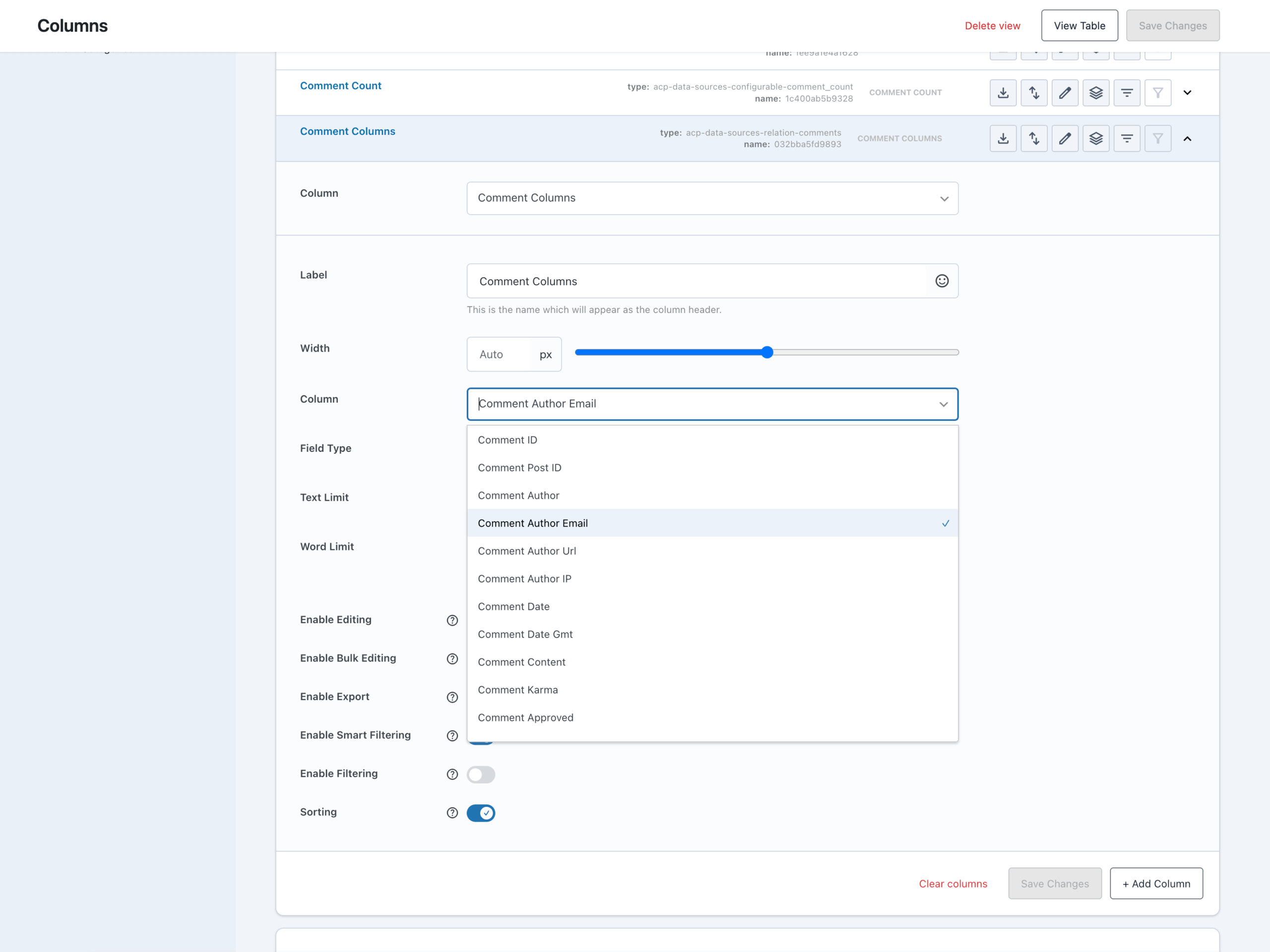
- Join a table as a column: Useful if your table has a 1:M (one-to-many) relation. This will allow you to pick a column from a foreign table and display all matching values.
- Join a table as a column and on a single field of that table: Useful if your table has a 1:M or 1:1 relation, but you want to query a single field only.
wp_post_metais a good use-case for this: you can choose whichmeta_keyis added as a column for a certain post.
For each relation you can specify a JoinType (LEFT or INNER) and the Cardinality, which tells if the relation is 1:1 or 1:M.
Let’s look at how these relations are defined It’s quite a long snippet, but there are also many things going on:
<?php

add_action('acp/data-sources/register', function (DataSourceRegistry $registry) {
    /**
     * Register all tables as Data Sources first
     */
    $comments = new DataSource(
        'comments',
        (new TableSchemaColumnsBuilder())
            ->normalize_names()
            ->build('wp_comments'),
        new DatabaseFactory('wp_comments')
    );

    $postmeta = new DataSource(
        'post_meta',
        (new TableSchemaColumnsBuilder())
            ->normalize_names()
            ->build('wp_postmeta'),
        new DatabaseFactory('wp_postmeta')
    );

    $users = new DataSource(
        'users',
        (new TableSchemaColumnsBuilder())
            ->normalize_names()
            ->build('wp_users'),
        new DatabaseFactory('wp_users')
    );

    $registry->register($comments);
    $registry->register($postmeta);
    $registry->register($users);

    /**
     * Build the Posts Data Source
     */
    $post_columns = (new TableSchemaColumnsBuilder())
        ->normalize_names()
        ->build('wp_posts');

    // Relation column: Comments → comment_date
    $post_columns = $post_columns->with_column(
        new Column(
            'comment_date',
            'Comment Date',
            new RelationType(
                new Relation(
                    $comments,
                    'comment_post_ID',  // foreign table key
                    'ID',               // local table key
                    null,
                    Cardinality::create_one_to_many(),
                    new Alias('comment')           // alias to prevent ambiguous columns (ID in this case)
                )
            )
        )
    );

    // AttributeRelation column: Post Meta → meta_value for a meta_key
    $post_columns = $post_columns->with_column(
        new Column(
            'meta_example',
            'Meta (example)',
            new AttributeRelationType(
                new AttributeRelation(
                    $postmeta,
                    'post_id',          // foreign key column on wp_postmeta
                    'ID',               // local key on wp_posts
                    'meta_key',         // attribute name column
                    'meta_value',       // attribute value column
                )
            )
        )
    );

    /**
     * Join wp_users on post_author (full relation)
     */
    $posts = new DataSource(
        'posts_basic',
        $post_columns,
        new DatabaseFactory('wp_posts'),
        new MenuFactory(
            'Posts Overview',
            'Posts (Custom)'
        ),
        new RelationCollection([
            new Relation(
                $users,
                'ID',           // foreign key on wp_users
                'post_author',  // local key on wp_posts
                JoinType::create_inner(),
                null,
                new Alias('users')
            ),
        ])
    );

    $registry->register($posts);
});
The most notable thing is that relations are always between Data Sources, not between tables. This gives you the proper control to define columns, capabilities and to manage it independent as well. There is nothing stopping you from defining a Data Source with it’s own WordPress List Table, but also use it in a relation.
Another thing you might have noticed is that relations can takes a JoinType and a Cardinality. They default to a LEFT JOIN and a 1:1 relation. These are the safest options for most scenario’s, but you can change them if you want other results. For example: we setup our post table in such a way only posts with an author as user will show up because we used an INNER JOIN here.
Wrapping Up
Quite a technical read! But hopefully you now have a good understanding of the possibilities that Custom List Tables bring to Admin Columns and your WordPress install in general. If you have tabular data: Admin Columns can support it now! The next big thing would be to find an elegant way to make it easy to support external tabular data such as an API or a CSV file.
As always, we are open to feedback and keen to hear your thoughts on this! Just comment here to post additional features requests on the public roadmap. Thanks for reading along!
FAQ
- What kind of data does a Custom List Table support?
At the moment, Custom List Tables work exclusively with MySQL/MariaDB tables. This includes WordPress core tables as well as custom tables created by plugins or applications.
We are exploring how other data sources, such as APIs or other tabular data, could fit into this model in the future. Any such integration would likely rely on MySQL/MariaDB as a persistence layer. This ensures the data behaves predictably and performs well inside the WordPress admin. - Can I register the same table more than once?
Yes.
You can register a Data Source multiple times as long as each Data Source has a unique ID. This makes it possible to expose the same underlying data in different ways, for example with different columns, relations, or permissions. - Which field types are supported?
Right now we support text, numbers, date, WordPress posts, users and media, images, colors and with other tables. Each type has it’s own options (e.g. formatting of a date or setting a word limit). - Can I have duplicate rows on the List Table when I use a relation?
Yes, this can happen.
If you join a one-to-many (1:M) relation, rows from the primary table may appear multiple times.
In many cases this isn’t a problem, but it can introduce some unpredictability for things like pagination, totals, or assumptions about uniqueness. When that matters, it’s often better to reverse the relation and use a many-to-one (M:1) variant instead, which means: start with the “many” table and join the “one” table. - Are WordPress core tables like wp_users or wp_posts treated differently?
Yes and no.
The default capability factory used by Data Sources applies stricter defaults that prevents edits or deletions. This is to prevent you from deleting your own user or important site options by accident.
You can simply supply another default factory that ships with Data Sources, but having to do that explicitly is by design.